
Sentiment Analysis
To see the Sentiments for users in the Call History, the below prerequisites are required.
1. Click on the Users tile.

2. Use the search to find desired user then click the blue name to edit OR use the pencil to open edit options.

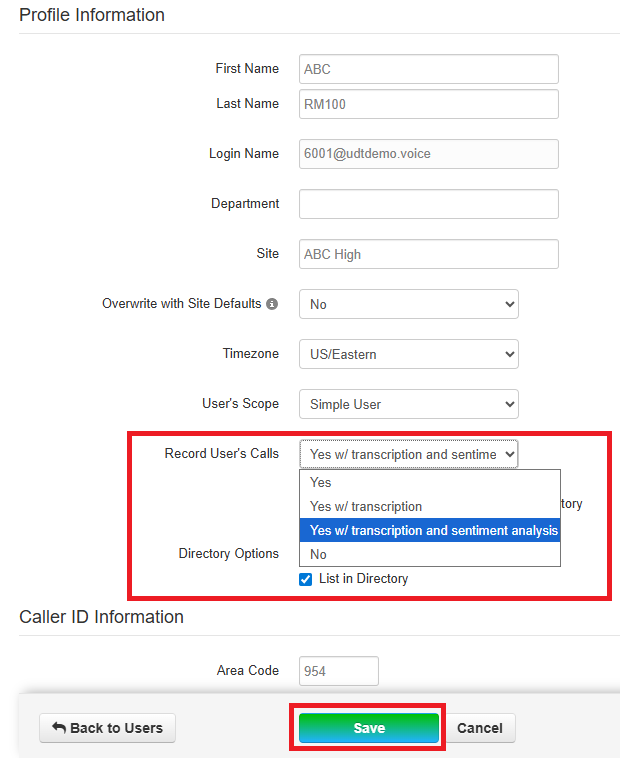
3. Scroll down to Record User's Calls and select Yes, w/transcription and sentiment analysis. Click Save.
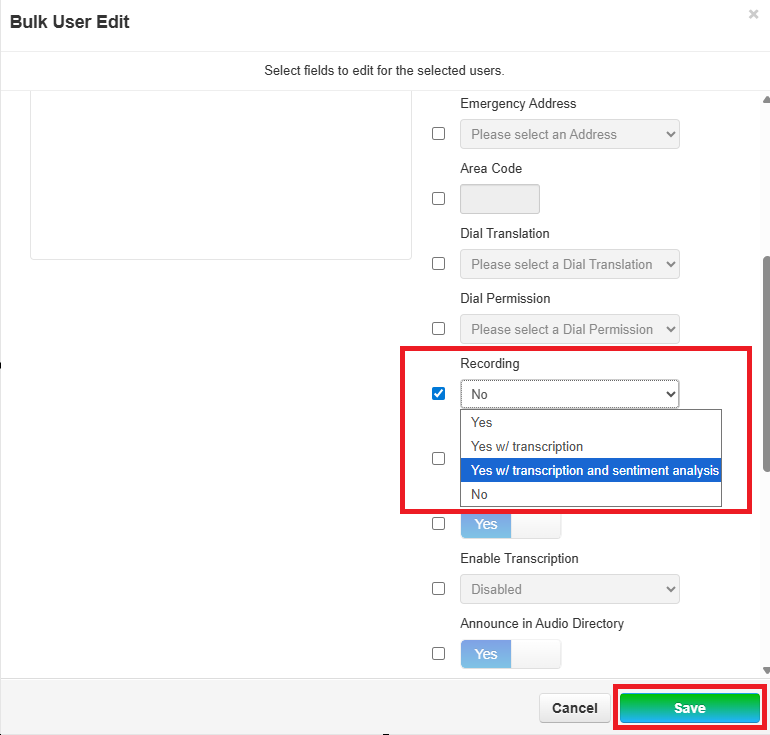
You can also use the Bulk Edit option for making edits to multiple users. See How to Make Bulk Edits to Multiple User Accounts here. When using Bulk Edit, select Recording and Yes, w/transcription and sentiment analysis. Click Save.
How to View Sentiments
1. Click on the Call History tab.

2. Click on the Columns tab and select Sentiment and Closing Sentiment from the drop down.

Max date range is 31 days. Use the  button to filter desired date range when needed.
3. Click on the Listen icon to open the Call Transcript page.

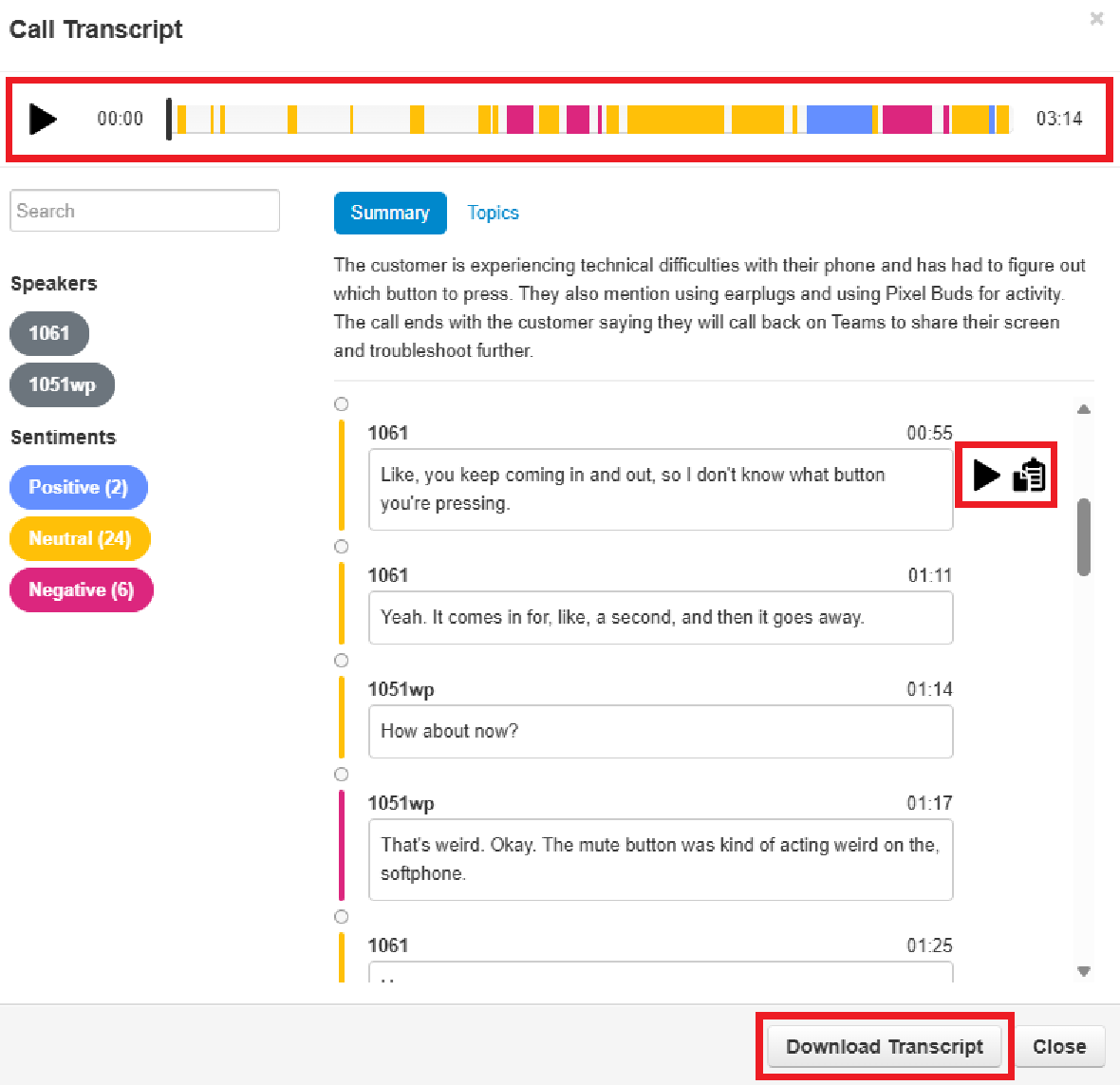
The sentiment data uses colors to illustrate the various segments and then attempts to quantify the overall mood of the conversation into Positive, Natural and Negative.
4. From here you can listen to the whole transcript from the audio bar, listen to each individual text (both are separated in to the color of corresponding sentiment), and downloaded.
Call Queues can also have Sentiment Analysis; however, the Record Calls MUST be tuned on for BOTH the Call Queue(s) and the individuals in that queue.