
How to Configure Live Answer During Business Hours and Auto Attendant After Hours
In order to set the Answering Rules for live answer during business hours and auto attendant after hours, the below prerequisites are required. Office Hours and Lunch Hour need to be determined, and the Time Frames built (see How to Build Time Frames documentation).
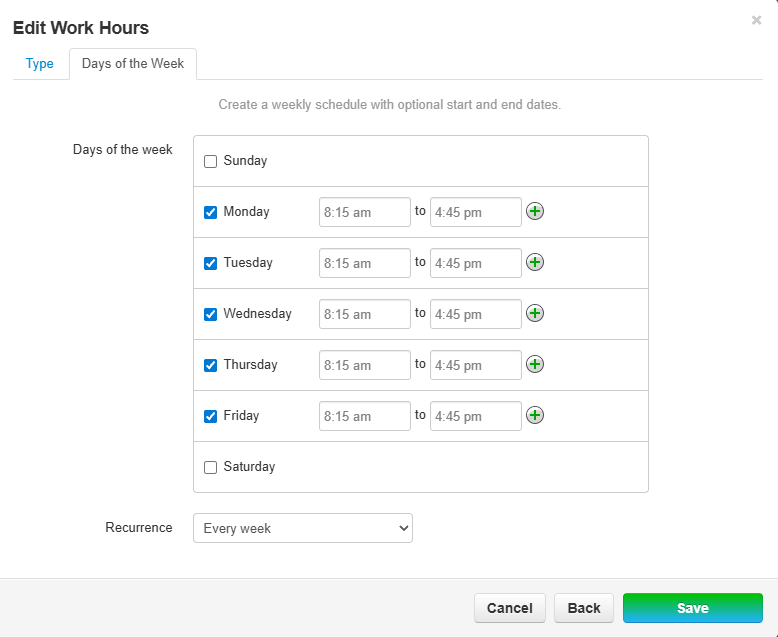
- Office Hours defined (Time Frames)
- Main Telephone Number (ex. 954-607-6031)
- Routing User Extension (ex. Main Line Ext 1000)
- Front Desk Extension (ex. Front Desk Ext 1001)
- Auto Attendant Added (ex. ABC High Ext 9005)
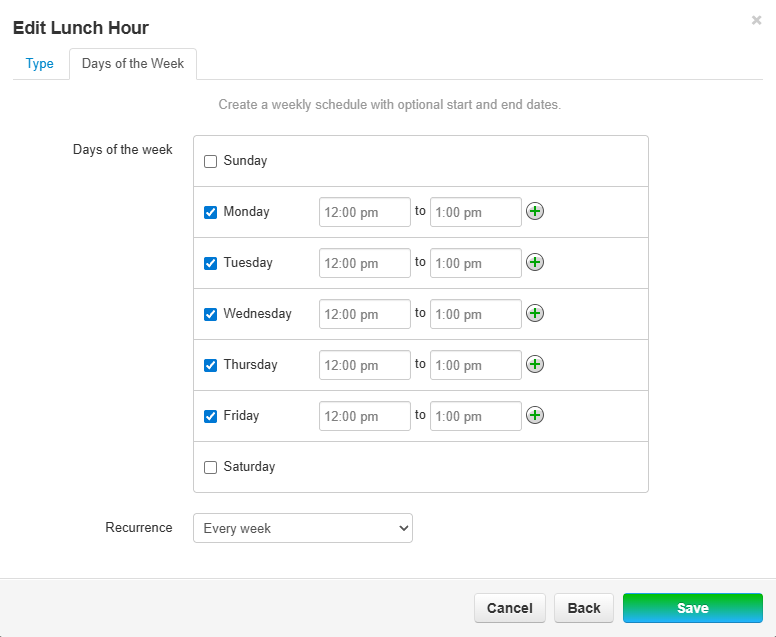
Example Time Frames for Office Hours and Lunch Hour
Office Hours:
Lunch Hour:
The "Default" Time Frame will be referenced automatically during all times not defined by the previous time frames. This Time Frame should be treated as "Off Hours" to prevent having to define every single moment of the day.
Call Flow
| Number | Action | Number | Answering Rule | Action | Number | Action |
| 954-607-6031 | Routes to | "Main Line" 1000 | Lunch hours | Forward Always | Auto Attendant Ext 9005 | Caller Routes through Menu |
| Office Hours | Forward Always | "Front Desk" Ext 1001 | Live Answer | |||
| Default (Off Hours) | Forward Always | Auto Attendant Ext 9005 | Caller Routes through Menu |
Process
1. Click on the Inventory tile.

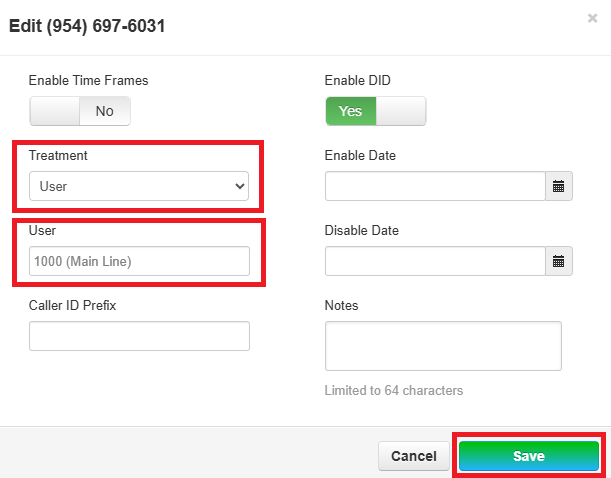
2. Locate Phone Number (ex. 954-697-6031) and click to edit. Note: you can also use the pencil to edit.

3. Assign Treatment as User and assign Ext 1000 (Main Line) to User. Click Save.
4. Click on the Users tile.

5. Locate the Routing User (Main Line) Ext 1000 and click to edit. Note: you can also use the pencil to edit.

6. Click the Answering Rules tab and then Add Rule.

7. Add Time Frame of Lunch Hour to Forward Always to Auto Attendant and Save.
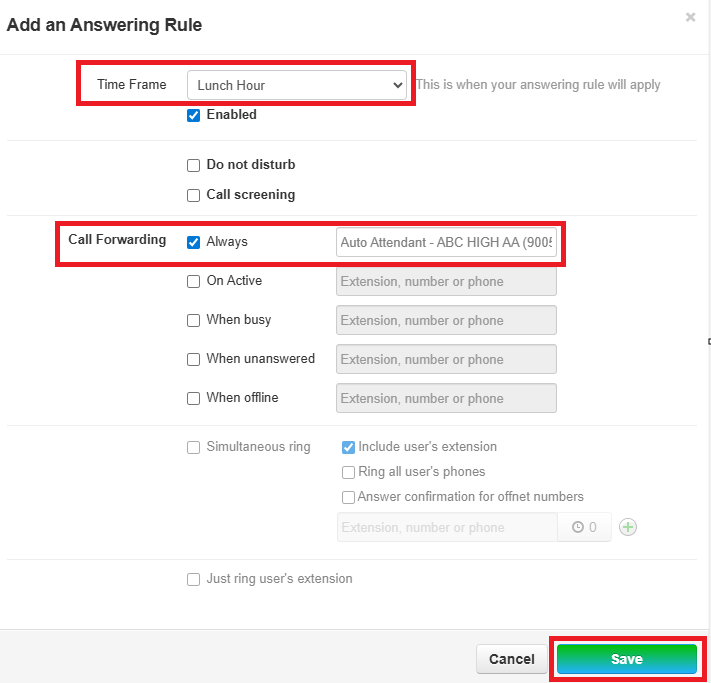
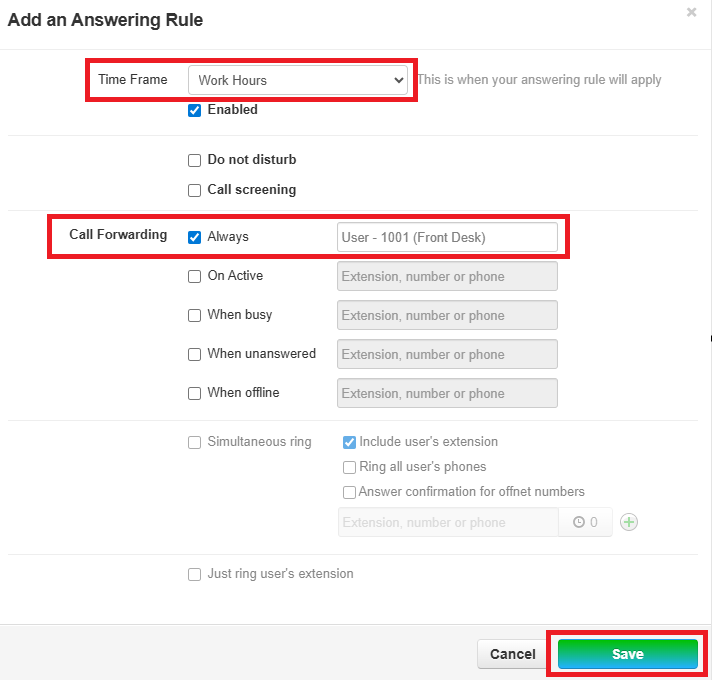
8. Add Time Frame of Work Hours to Forward Always to Front Desk. Click Save.
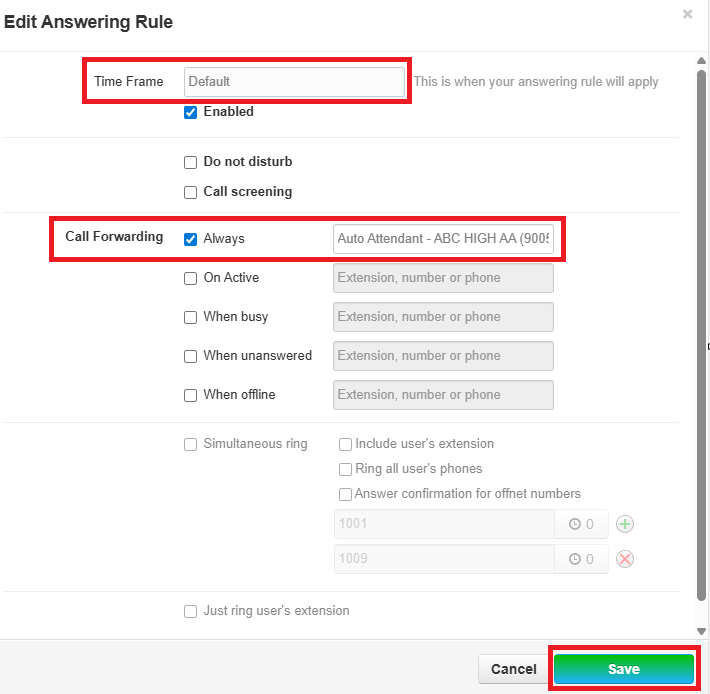
9. Set the Default (Off Hours) to Forward Always to Auto Attendant and Save.
Finished Answering Rules:
