How to Add and Configure Sidecar Modules
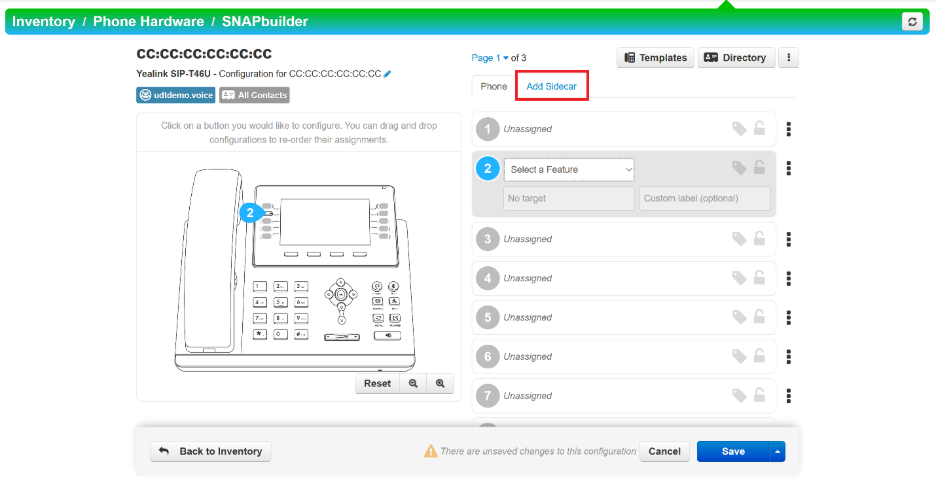
1. To add any additional sidecar expansion modules, select the Add Sidecar tab.
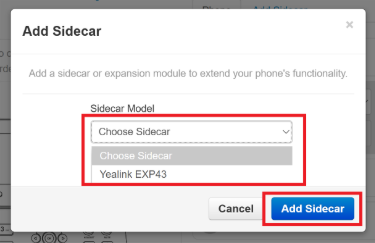
2. In the pop-up menu, click on the drop-down tab and select the sidecar model you will be adding. Then click the blue Add Sidecar button.
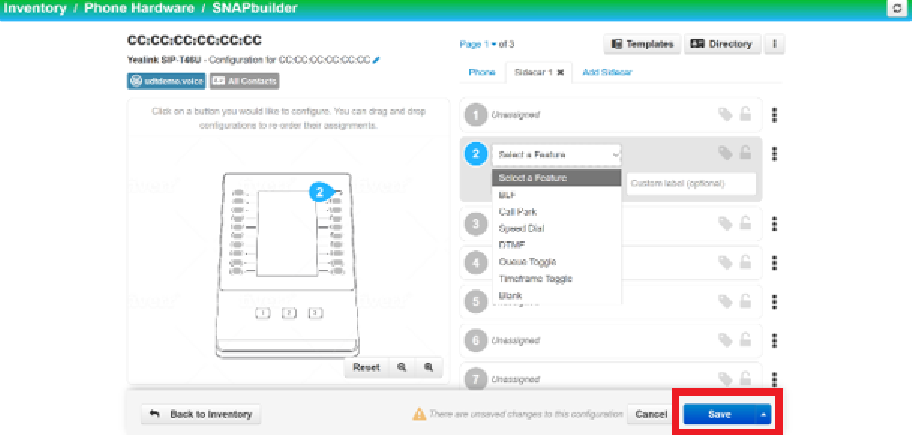
3. Once added, you may configure additional features for the sidecar’s buttons (it's the same process as the main phone button configuration). Note: Some sidecar expansion modules may require power adapters to operate depending on the scenario (e.g., they always need one; for Yealink’s EXP43, having more than one sidecar requires power adapters for any additional sidecars). Please refer to the sidecar expansion module’s handbook for more information.