
Basic Usage for a SIP T87 W
Place a Call
When the phone is not in use:
- Pick up the handset or press the
 Speakerphone button.
 - Dial tone will be heard. Dial an extension or telephone number.
When using a headset:
- Press the
 Headset button to activate headset mode.
 - Dial an extension or telephone number.
When you are already on a call:
- Tap the Hold soft key.
- Tap the New Call soft key.
- Dial an extension or telephone number.
- Resume the original call by tapping the Resume soft key.
Answering a Call
On the handset:
- Pick up the handset to answer the call.
On a headset:
- When the headset is connected, press the
 Headset button to answer the call.
On Speakerphone:
- Press the
 Speaker button to answer the call.
Using the headset:
- Press

You can reject an incoming call by pressing the Reject or the X button located under the Navigation wheel.
Rejecting An Incoming Call
Tap the Reject soft key to immediately send the caller to voicemail.
End Call
On a handset:
- Hang up the handset.
On a headset:
- Press the
 Headset button.
On speakerphone:
- Press the
 Speakerphone button.
Redial
- Press the
 Redial button when the phone is idle to dial out the last dialed number.
 - Utilize the arrow keys to select call history (up and down), highlight your desired target, and press the Call soft key.
Call Mute/Unmute
- Press
 to mute the microphone during a call.
 - Press
 again to unmute the call.
Call Hold and Resume
To place a call on hold:
- While on a call, tap the Hold soft key.
Retrieving calls on hold:
- Tap the Resume soft key.
Call Waiting
While already on a call, and a new call rings in, you will hear a beep tone emitted by your phone.
To Answer the Second Call:
- Tap the Answer soft key to access that call. The first call will be placed on hold.
- Once the second call has ended, resume the original call by tapping the Resume soft key.
To Reject the Second Call:
- Tap the Reject soft key to immediately send the caller to voicemail.
Volume Adjustment
In-Call Volume:
- While on a call, press the + and -
 buttons to raise or lower the volume.
Ringer Volume:
- While the phone is not in use, press the + or -
 buttons to adjust the ringer volume on the phone.
 - Press
 to adjust the volume.
Speakerphone
While the phone is not in use:
- Press the
 Speakerphone button to activate the speakerphone and get a dial tone for an outbound call.
While on a call on the handset or headset:
- Press the
 Speakerphone button to continue the current call on the speakerphone.
While a call on speakerphone is active:
- Press the
 Speakerphone button to hang up the current call.
Call Transfer
You can transfer a call in the following ways:
Blind Transfer
Allows you to transfer a call to a person without confirming if they want to accept or reject the call.
- Press
 key or Transfer during a call.
 - Enter the number you want to transfer to.
- Press B Transfer (Blind Transfer) button.
Semi-Attended Transfer/Warm Transfer
You can transfer to other contacts immediately when receiving a ringback or after consulting with them first.
- Press
 key or Transfer during a call.
 - Enter the number or select a contact from the placed call list you want to transfer the call to; or select Directory and select the desired contact from the Directory list.
- Tap the Attended Transfer
 soft key.
 - Tap the Transfer soft key, or hang up, after the second party answers and you have announced the call.
Call Forward
To enable call forward:
Forwarding Incoming Calls
If a call is currently ringing and you want to forward it, press the Forward to field, then enter the target number and tap the Save button.
Disable Call Forwarding
Call Conference
- Press the Conference during an active call. The call is placed on hold.
- Enter the number of the second party or select the desired contact from the search list , contact list or placed call list Directory before you enter a number.
- When the second party answers the call, select Conference to add the second party to the conference. . All parties are now joined in the conference.
- Repeat the steps to add more parties to the conference.
- Press EndCall to disconnect all parties.
You can split the conference call into two individual calls by pressing Split.
Speed Dial
To configure a speed dial key:
To use the speed dial key: Press the SpeedDial to dial out the present number.
Access Voice Message
The message waiting indicator on the idle screen indicates that one or more voice messages are waiting at the message center. The power indicator LED slowly flashes red.
To listen to voice messages:
- Press the Messages (envelope) button on the phone base. Locate the envelope icon button on your phone base and press it.
- Enter your voicemail PIN or Password provided by your system administrator, then press the # key.
- Follow the voice prompts to listen to, save or delete your messages.
Call History
Each icon in the Call History indicates the corresponding call history status.
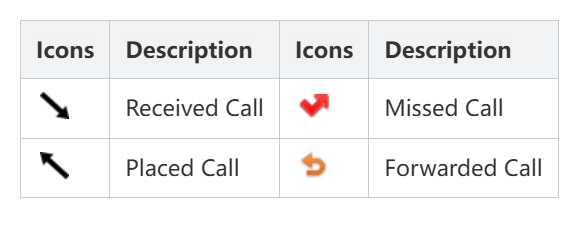
The history record saves the call information such as the caller’s name and number, local line, and call duration. Once you are on the call history screen, you can manage your logs using the touchscreen or the directional pad:
- Select the History soft key or go to Menu > History to view your call lists (All, Placed, Missed, or Received calls).
- Select
 behind a desired entry to obtain more information.
 - Select an entry from the list by scrolling through the history list with the directional pad - scrolling down, left or right. Once you have found your desired entry, you can do the following:
- Press Call to call the entry or missed call.
- Press Delete to delete the entry from the list.
- If you press Option, you can also do the following:
- Select Detail to view detailed information about the entry.
- Select Add to Contacts to add the entry to the local directory.
- Select Add to Blocklist to add the entry to the blocklist.
- Select Delete All to delete all entries from the list.
Contact Directory
Accessing Directories
- Local Directory: Go to Menu > Directory > Local Directory to view, add, or edit personal contacts.
- Shared Directory: Go to Menu > Directory > Share Directory to see company-wide or shared contacts.
- CardDAV / Remote Book: Navigate to Menu > Directory > CardDAV Phone Book or remote phone book options for synced directories.
To add a contact:
- Press Directory from the idle screen ( or press Menu > Directory > Local Directory). Then select All Contacts.
- Tap Add to add a contact.
- Enter a unique contact name in the Name field and contact numbers in the corresponding fields.
- Tap Save to accept the change.
To edit a contact:
- Press Dir when the phone is idle, and then select All Contacts.
- Press
 or
or  to select the desired contact, press Option and then select Detail from the prompt list.
 - Edit the contact information.
- Press Save to accept the change.
To delete a contact:
- Press Dir when the phone is idle, and then select All Contacts.
- Press
 or
or  to select the desired contact, press Option and then select Delete from the prompt list.
 - Press the OK when the LCD screen prompts “Delete selected item?”.
To blocklist a contact:
Add Contact Groups
- Select Directory or go to Menu > Directory > Local Directory.
- Select
 > New Group.
 - Enter the desired group name.
- Select OK.
Edit Contact Groups
- Select Directory or go to Menu > Directory > Local Directory.
- Select
 .
. - Select the desired group and then select
 .
.