How to Configure a Main Line Phantom/Fork
Prerequisites
Established Main Telephone Number (ex. 954-607-6031)Established Routing User Extension (ex. Main Line Ext 1000)Established Front desk/Answering User Extensions (ex. Front Desk Ext 1001 and Executive Assistant Ext 1009)
Configure Phantom
A "Phantom" line is an extension that serves as a "Routing User." Calls are routed to this extension and then forwarded on to be answered. This allows phone calls to be treated by the forwarded user's answering rules and voicemail options.
Configure Phantom
- Established Main Telephone Number (ex. 954-607-6031)
- Established Routing User Extension (ex. Main Line Ext 1000)
- Established Front desk/Answering User Extensions (ex. Front Desk Ext 1001 and Executive Assistant Ext 1009)
Call Flow
Number | Action | Number | Answering Rule | Number | Action |
954-607-6031 | Routes to | "Main Line" 1000 | Simultaneous Ring 1000 and 1009 | 1000 | Ring 1000 |
1009 | Ring 1009 |
Process
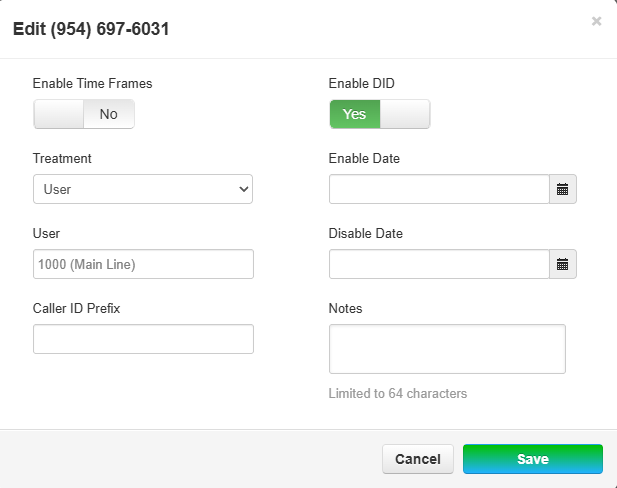
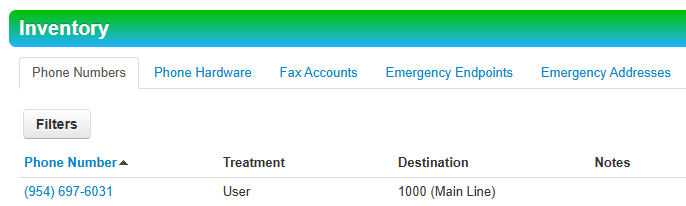
- Inventory > Locate Phone Number (954-697-6031) > Assign Treatment as User > Assign to Ext 1000 (Main Line)
- Users > Locate Routing user (Main Line) Ext 1000 > Edit > Answering Rules > Add Rule
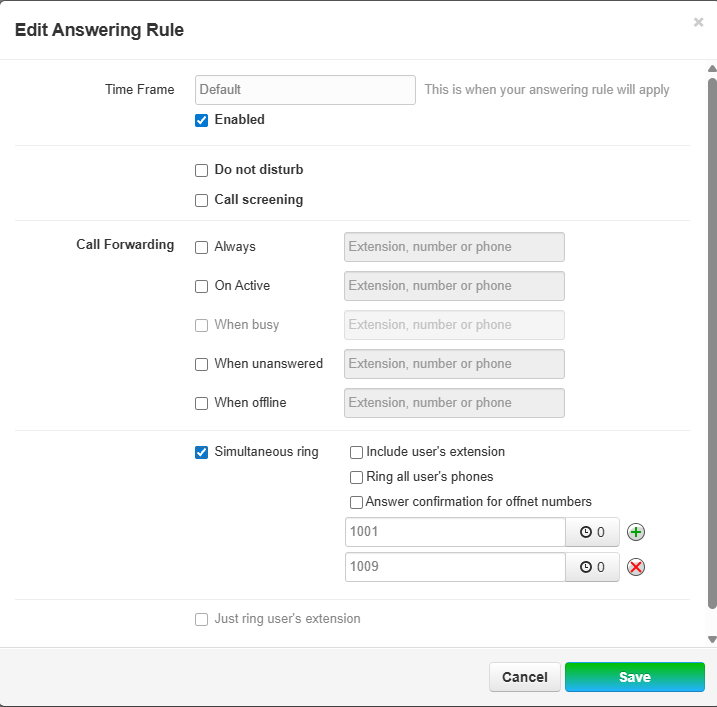
- Add Rule during Default time frame to Simultaneous Ring extensions 1001 and 1009
- You can set "Ring Delays" to prioritize who will answer calls first
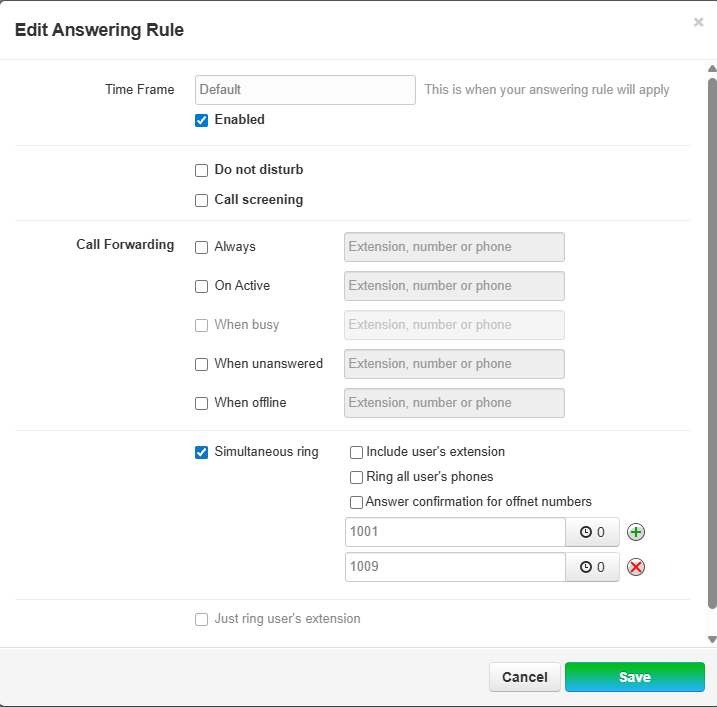
- Add Rule during Default time frame to Simultaneous Ring extensions 1001 and 1009
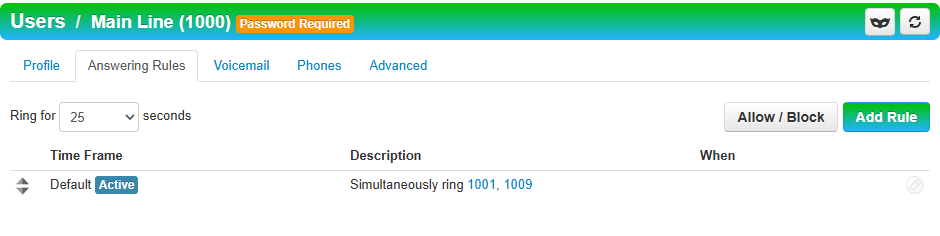
- Finished Answering Rules:
- Calls will now be forwarded from Extension 1000 to 1001 and 1009 and rings immediately
Configure Fork
A "Forked" line is an extension that can be placed on multiple phones as a "Line Appearance." This allows the "forked" extension to have a standardized answering rule and voicemail treatment. Forked extensions will need sub extensions defined.
Call Flow
Number | Action | Number | Answering Rule | Sub Extension | Phone | Action |
954-607-6031 | Routes to | "Main Line" 1000 | Simultaneous ring 1000a and 1000b | 1000a | Line 2 on Ext 1000 Phone | Ring |
1000b | Line 2 on Ext 1009 Phone | Ring |
Process
- Inventory > Locate Phone Number (954-697-6031) > Assign Treatment as User > Assign to Ext 1000 (Main Line)
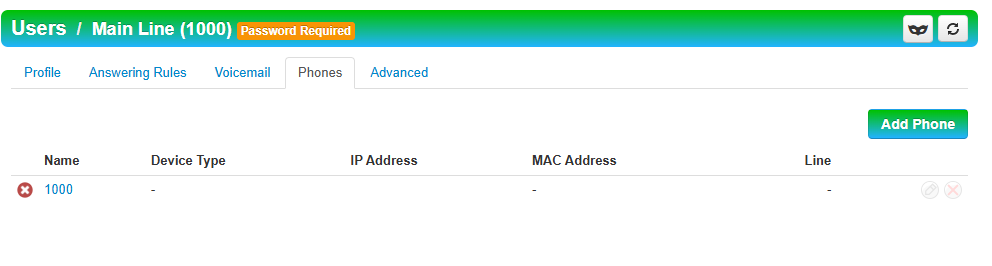
- Users > Locate Routing User (Main Line) Ext 1000 > Edit > Phones Tab > Add Phone
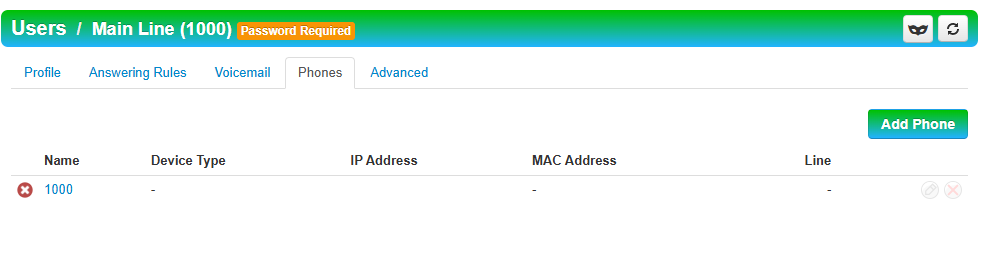
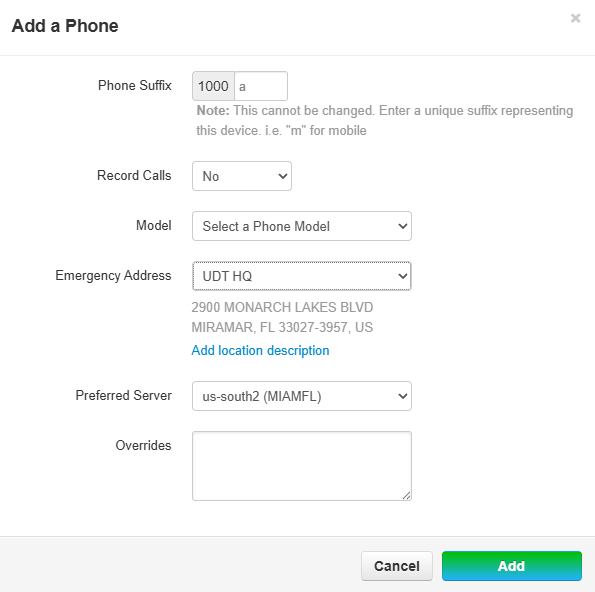
- Create Sub Extension 1000a and define Emergency Address
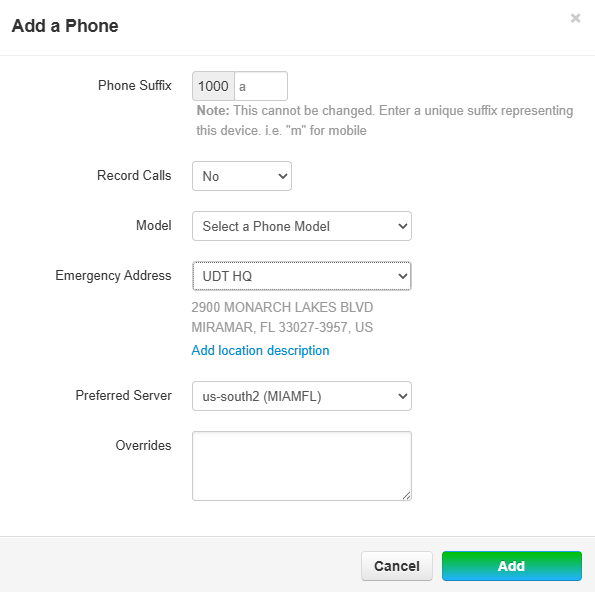
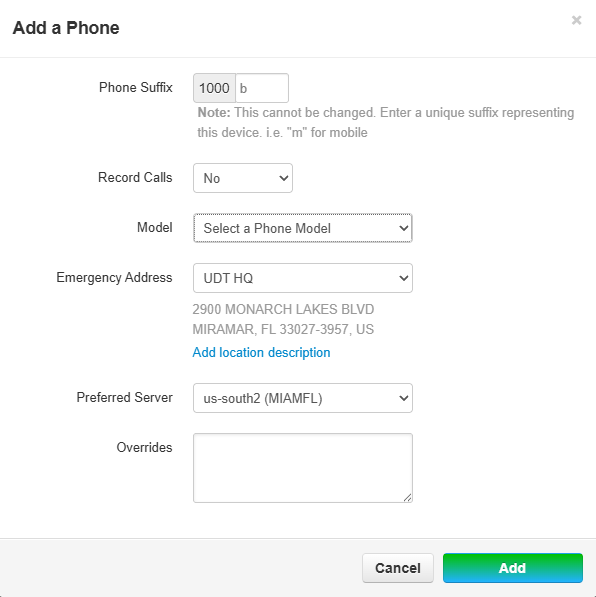
- Create Sub Extension 1000b and define Emergency Address
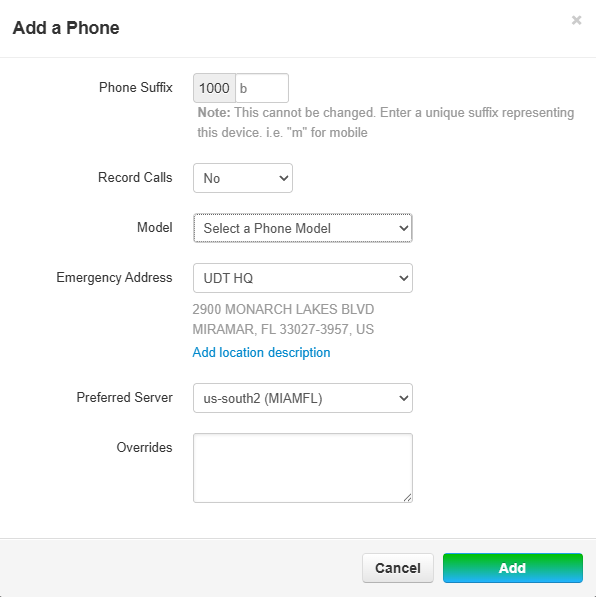
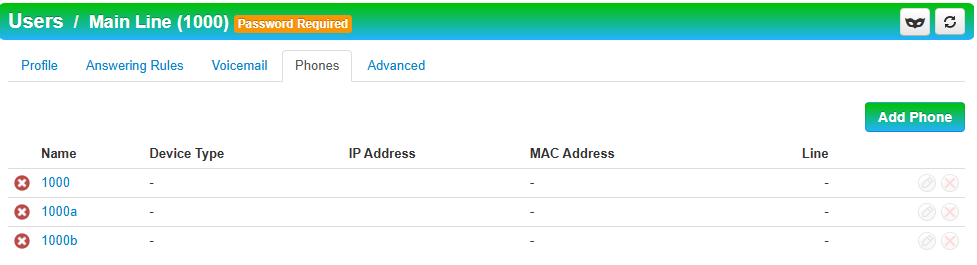
- Finished Phone Tab
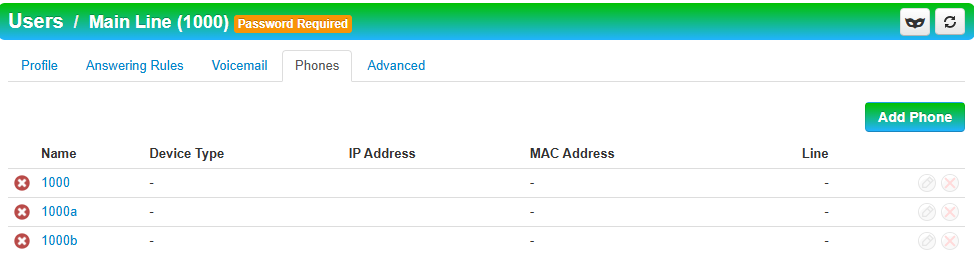
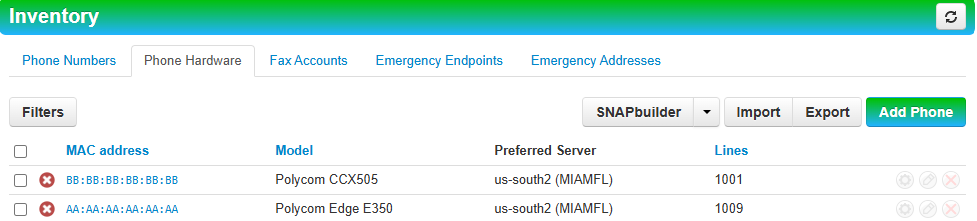
- Inventory > Phone Hardware > Locate Ext 1000 phone > Settings Gear to Enter SNAPBuilder
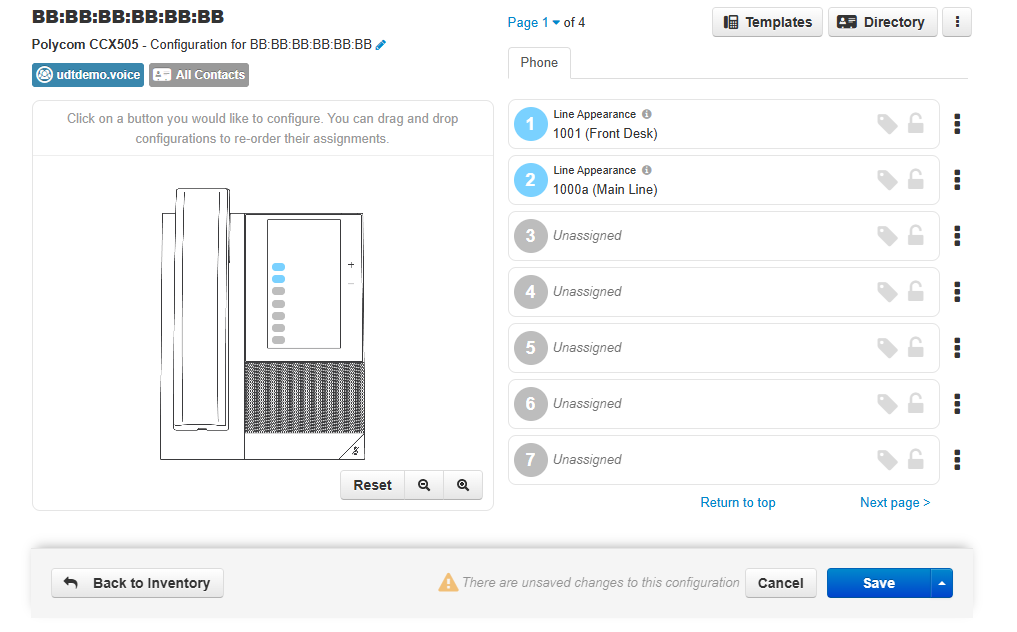
- Add 1000a as a Line Appearance on 1001's Phone > Click Save
- Locate Ext 1001 Phone > Settings Gear to enter SNAPBuilder
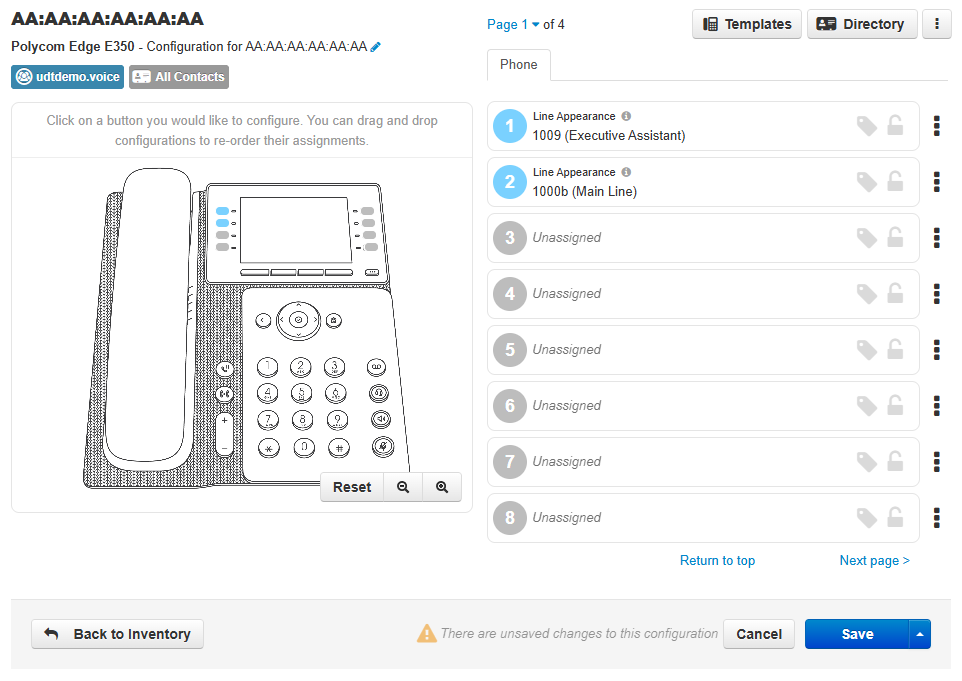
- Add 1000b as a Line Appearance on 1009's phone > Click Save
- Finished Inventory
- Calls will now be received on 1000a and 1000b and can be picked up on 1001's phone one Line 2 and 1009's phone on Line 2