
How to Configure SNAPbuilder Buttons
1. From the home page, hover over the gear in the Active Phones box on the right and click on the gear. This will bring you to the Phones/SNAP builder page.
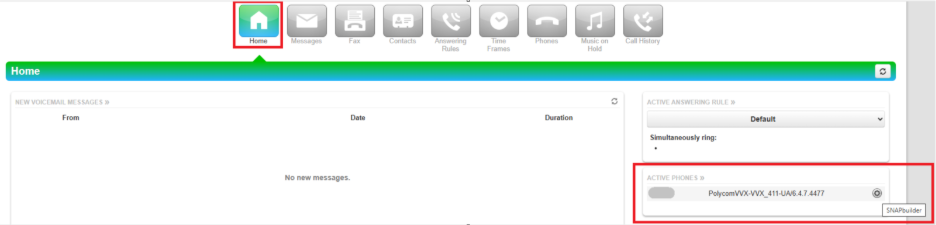
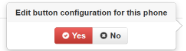
Note: You can also get to the SNAPbuilder by clicking the Phones tile, hover over the gear on the right, click the gear and then click the red YES button to continue to the SNAPbuilder page. 
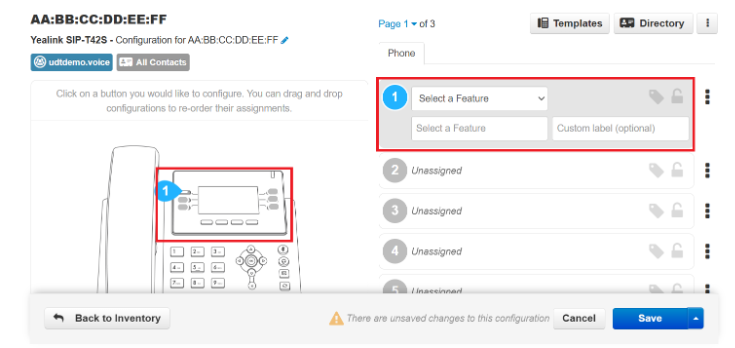
3. To Select a Feature, click on the drop-down menu to view the features you can assign to the buttons and select the desired feature. When you finish your selection, click SAVE. Note: The No Target and Custom label boxes are greyed out and do not need to be filled in.
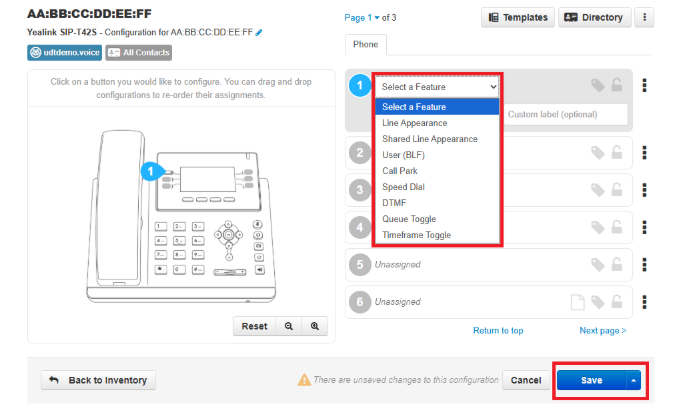
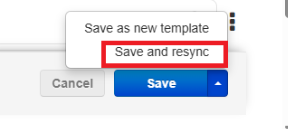
4. Your phone will sync with your saved features overnight. However, you can select to save and resync on the fly by selecting it from the drop-down.
Feature | Description |
Line Appearance | Assigns a user to the line. |
User (BLF) | Shows a user with status (BLF). While light is flashing, calls to this user can be picked up on configured phone. Call the user when pressed. |
Call Park | Parks a call to the entered Call Park. Pressing again will retrieve the call from the Call Park. |
Speed Dial | Calls the entered phone number. |
Queue Toggle | Toggles the active queue status for the user. All queues will be toggled. |
Timeframe Toggle | Toggles the active status of the selected timeframe. |