For iOS
1. Open the App Store > search for SNAPmobile > click Get.
2. Open app once installation is complete and enter UDT for the Host ID. Click Continue.
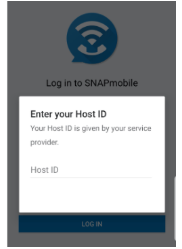
You will be required to enter the Host ID anytime you log out and back in again.
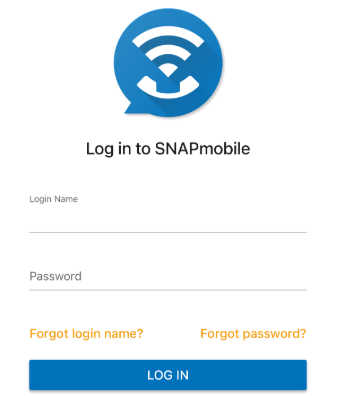
3. Enter Login Name and Password and click Log In. These are the same credentials that you use to access the UDT Voice Portal.
4. The app will prompt you to grant the following access permissions:
- Send Notifications (optional)
- Use Siri (optional)
- Access the Microphone (required)
- Access your Contacts (required)
- Select Contacts (recommended)
- Choose contacts or select contacts later
- All Contact (not recommended)
- Select Contacts (recommended)
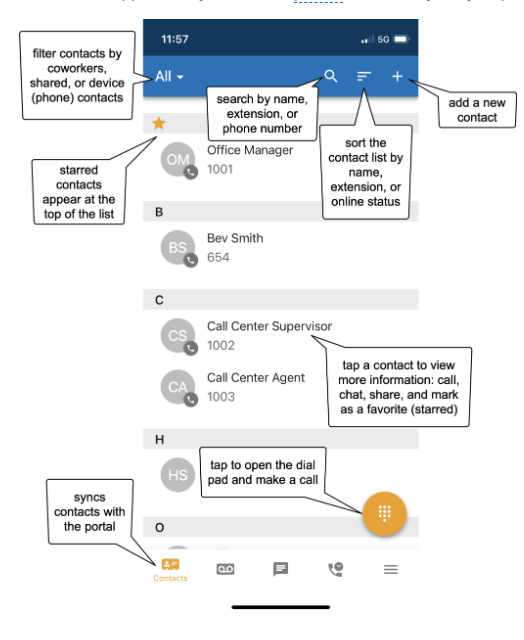
Contacts Screen
ThisThe Contacts screen is the default home screen. Users can dial internal extensions and external phone numbers. When a contact is added in the app, it will sync with the portal (may require a refresh).
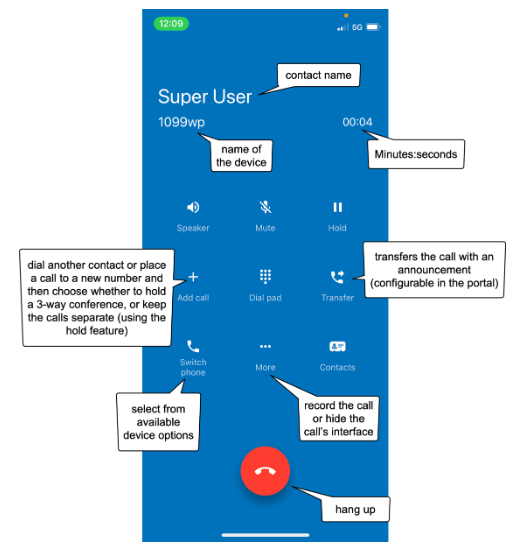
While actively in a call, there are standard functions (speaker, mute, hold, end call) and additional SNAPsolution features (record the call, transfer, add a call, switch phones).
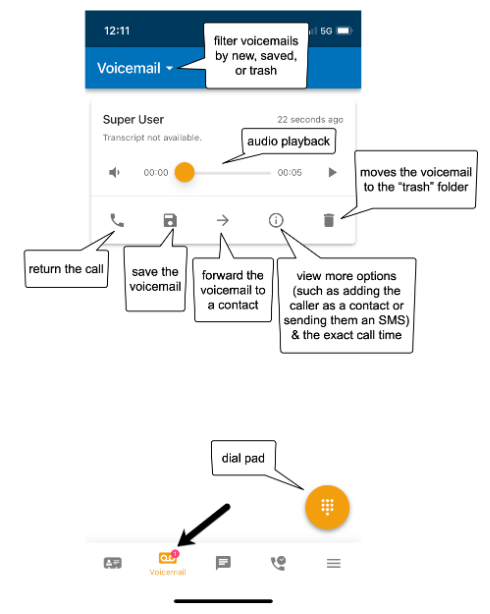
Voicemail Screen
The Voicemail screen syncs with the Portal and displays all available voicemails. Filter by new, saved, or trash.
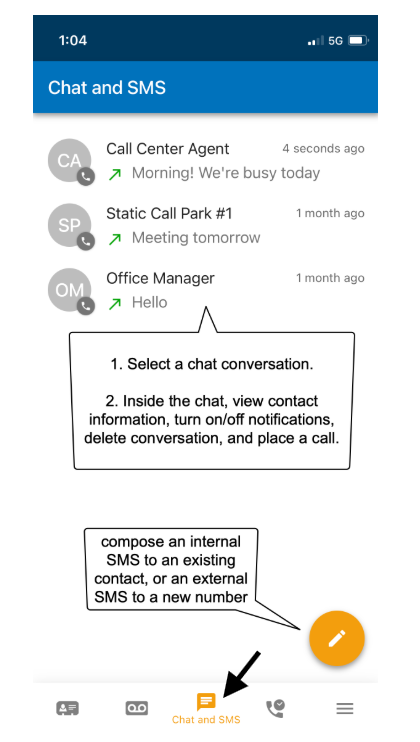
Chat and SMS
The Chat and SMS screen displays all available SMA conversations. Tap on a conversation to view more information. Chats are organized chronologically: the latest reply moves the entire conversation to the top of the list.
Call History
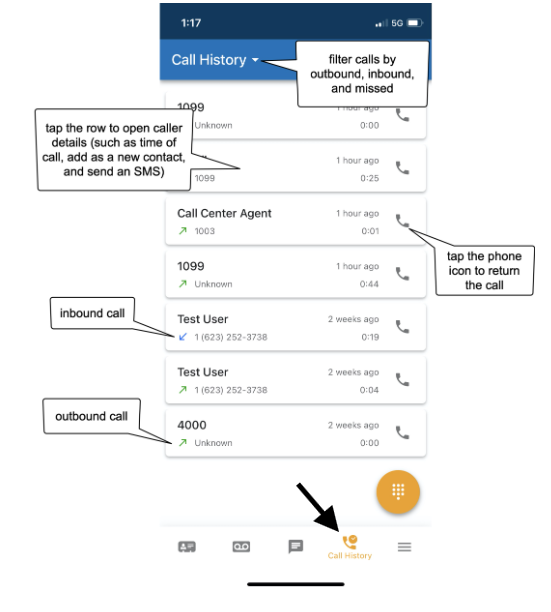
The Call History screen displays the user's inbound, outbound, and missed call history.