For Android
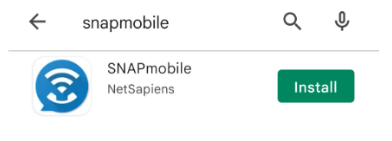
1. Open the Google Play Store > search for SNAPmobile > click Install.
2. Open app once installation is complete > enter UDT for Host ID. Click ok to continue.
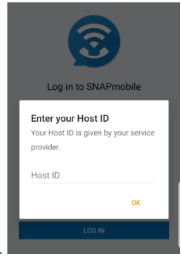
You will be required to enter the Host ID anytime you log out and back in again.
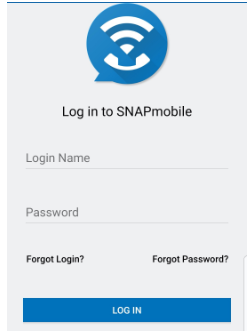
3. Next enterEnter Login Name and Password .and click Log In. These are the same credentials that you use to access the UDT Voice Portal.
4. The app maywill prompt you to grant variousthe following access permissionspermissions:
- All SNAPmobile to make and manage phone calls.
- Allow SNAPmobile to record audio.
- Allow SNAPmobile to access photos, media, and files on your device.
- Allow SNAPmobile to take pictures and record video.
5. To log out of the app, press the three vertical lines in the lower right corner and choose log out.
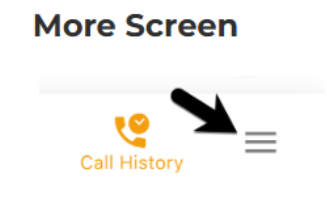
To receive calls you must be logged in. To stop receiving calls you must log out.
Calls made from the app will appear to receiving calling as coming from your office phone, NOT your cell phone.
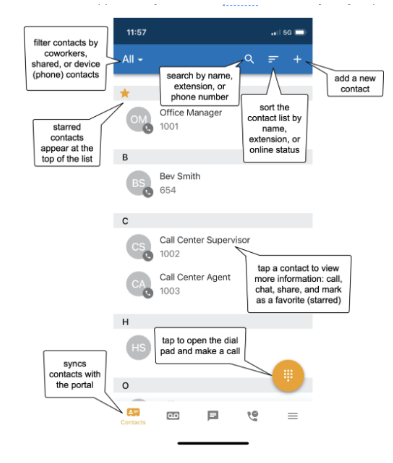
Contact Screen
The Contacts screen is the default home screen. Users can dial internal extensions and external phone numbers. When a contact is added in the app, it will sync with the portal (e.g.,may contacts,require microphone,a etc.)refresh).
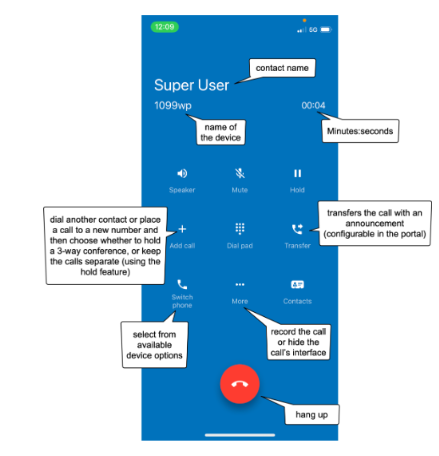
While actively in a call, there are standard functions (speaker, mute, hold, end call) and additional SNAPsolution features (record the call, transfer, add a call, switch phones).
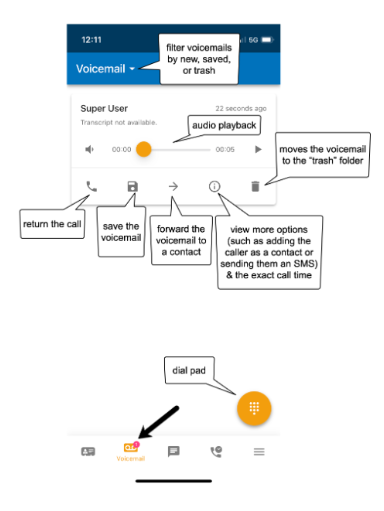
Voicemail Screen
The Voicemail screen syncs with the Portal and displays all available voicemails. Filter by new, saved, or trash.
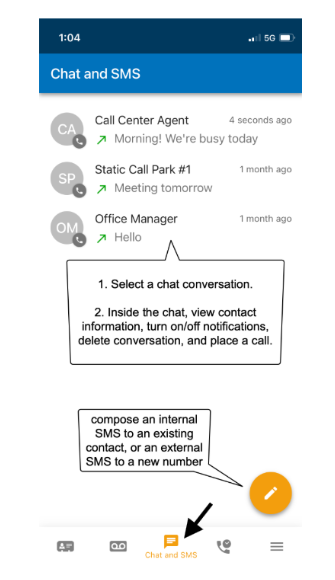
Chat and SMS
The Chat and SMS screen displays all available SMS conversations. Tap on a conversation to view more information. Chats are organized chronologically: the latest reply moves the entire conversation to the top of the list.
Call History
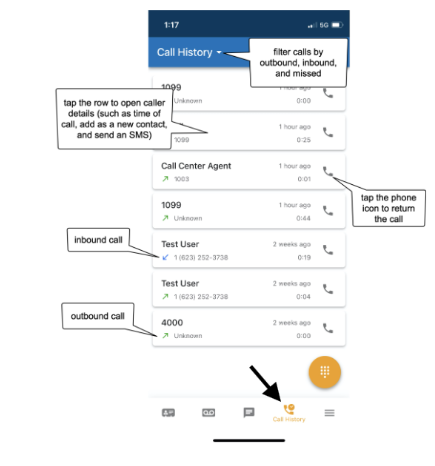
The Call History screen displays the user's inbound, outbound, and missed call history.