
Basic Usage for SIP-T73W
Basic Usage for SIP-T73W
Using the Buttons on Your T73W Phone
On the display are your lines, system park buttons, and speed dials.
The four buttons  at the bottom of the screen display are Dynamic keys and change depending if you are on the call or your system is idle.
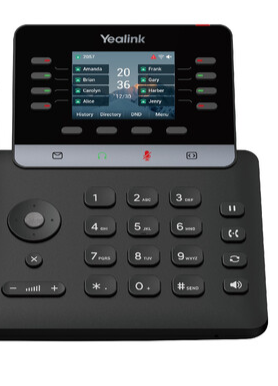
- Below the dynamic keys are Voicemail
 , Headset
  , Mute
 , and Next Page
  buttons.
 - To the right of the keypad you will find the Hold
 , Forward
 , Call log
 , and Speaker
 buttons.
 - To the left of the keypad you will find the Navigation
 , Cancel
  , and Volume
  button.
Place Call
Using the handset:
- Pick up the handset.
- Enter the number or select a contact, and then press Call.
Using the speakerphone:
- With the handset on-hook, press
 .
. - Enter the number or select a contact, and then press Call.
Using the headset:
- With the headset connected, press
 to activate the headset mode.
 - Enter the number or select a contact, and then press Call.
During a call, you can alternate between the headset, hands-free speakerphone and handset modes by pressing the HEADSET key, the Speakerphone key or by picking up the handset. Headset mode requires a connected headset.
Once you are on a call, your dynamic buttons on the display have changed and you have the ability to Transfer, Hold, or Conference a call.
Answer Call
Using the handset:
- Press the dynamic Answer button, or lift handset.
- You can also Silence or Reject the call from the dynamic keys on the display.
Using the handset:
- Pick up handset.
Using the speakerphone:
- Press
.
Using the headset:
- Press
.
You can reject an incoming call by pressing the Reject.
End Call
Using the handset:
Hang up the handset or press EndCall.
Using the speakerphone:
- Press
Using the headset:
- Press EndCall.
Redial
- Press
to enter Placed Calls list, select the desired entry and press
- Press
Call Mute/Unmute
- Press
to mute the microphone during a call.
- Press
again to unmute the call.
Call Hold and Resume
To place a call on hold:
- Press Hold during an active call.
To resume the call, do one of the following:
- If there is only one call on hold, press Resume.
To place a call on park, touvh any of the park buttons on display.
- You can see and retrieve the parked ball by ressing the red button.
Anyone with a park button display on their phone can see and retrieve that parked call by pressing the red button.
Place Phone in Do not Disturb Mode
Managing the Call Log
- Press the Call log
 button on right side of keypad.
 - Use the Navigation
 wheel on left side of keypad to:
- All calls
- Missed calls
- Placed calls
- Received calls
Call Transfer
You can transfer a call using the following procedure:
Transfer
- Press the dynamic Transfer during an active call.
- Type in the extension you would like to transfer the call to, or press the pre-programmed speed dial button.
- Call is now transferred.
Call Forward
To enable call forward:
- Press the Menu when the phone is idle, and then select Features > Others > Call Forward.
- Select the desired forward type and select Enabled or On from the corresponding field:
- Always Forward — Incoming calls are forwarded unconditionally.
- Busy Forward — Incoming calls are forwarded when the phone is busy.
- No Answer Forward — Incoming calls are forwarded if it is not answered after a while.
- Enter the contact number you want to forward incoming calls in the Forward to field.
- For No Answer Forward, press
 or
or  to select the desired ring time to wait before forwarding from the After Ring Time field.
 - Press Save to accept the change.
Call Conference
- Press Conference during an active call. The call is placed on hold.
- Enter the number of the second party, and then tap Call.
- Press the Conference again when the second party answers. All parties are now joined in the conference.
- During a Conference call using display buttons you can:
- Press the Conference button again to add another party.
- Put the call on Hold
- Press the Manage button which will show all parties and will allow you to select individual parties to Mute, Remove, or Hold them.
Speed Dial
To configure a speed dial key:
To use the speed dial key: Press the SpeedDial to dial out the preset number.
Voice Message
The message waiting indicator on the idle screen indicates that one or more voice messages are waiting at the message center. The power indicator LED slowly flashes red. Phones come with voicemail to email access.
To listen to voice messages via the phone:
- To access you voicemail you will need to have the pin provided to you in your welcome email
- Press
and follow the voice prompts to listen to your voice messages.
- Follow the voice prompts to listen to your voice messages.
- Enter your pin number and continue to follow prompts as needed.
Call History
- To view call history press the History button on display.
- Use the Navigation
 wheel to navigate to the number you would like to call and press the Call button.Select an entry from the list, and you can do the following:
 - All calls
- Missed calls
- Placed calls
- Received calls
- Forwarded calls
- Review saved contacts by pressing the dynamic Phone Book key on your display.
- Company contacts
- Personal contacts
- Add a contact.
- Select the desired contact list.
- Select Add.
- Enter your contact information.
- Select the desired account from the Account field.
- Select check or OK.
- Delete a contact.
- Select the desired contact list, and select the desired contact entry and select Option press Delete to delete the entry from the list.
- Select Delete All to delete all entries from a list.
- Edit a contact
- Select the desired contact list, and select the desired contact entry and select Option press Detail to view detailed information about the entry, and then edit the contact information
- Select Save, OK or Done, or tap.
- Blocklist a contact to reject an incoming call automatically.
- Select the desired contact list and contact.
- Select Option and Add to Blocklist.
- Select OK.
Contact Directory
To add a contact:
- Press Directory when the phone is idle, and then select All Contacts.
- Press Add to add a contact.
- Enter a unique contact name in Name field and contact numbers in the corresponding fields.
- Press Save to accept the change.
To edit a contact:
- Press Directory when the phone is idle, and then select All Contacts.
- Press
or
to select the desired contact, press Option and then select Detail from the prompt list.
- Edit the contact information.
- Press Save to accept the change.
To delete a contact:
- Press Dir when the phone is idle, and then select All Contacts.
- Press
- Press the OK when the LCD screen prompts “Delete selected item?”.
Volume Adjustment
- Press
to adjust the volume.