
How to Setup Voicemail to Email
1. Click on the Users tile.

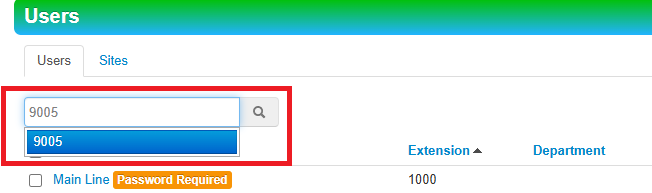
2. In the search bar type in desired name OR extension. Note: make sure to click the blue area of desired selection.
3. Click on the Voicemail tab.

4. Scroll down to Notifications and check the box to "Receive an email for new voicemail".
 5. Email Type and After Email Notification becomes available after box is checked. Select the desired option from the dropdowns and then click Save.
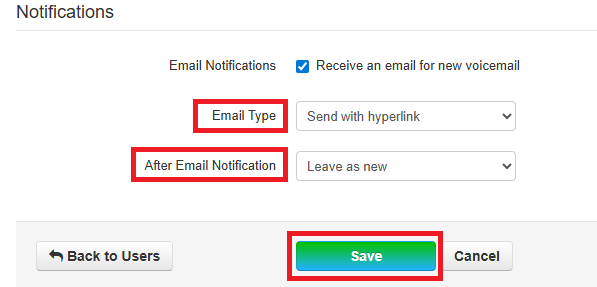
Email Type:
- Send with Hyperlink
- Sends an email with a web URL to directly go to the portal
- Send with brief Hyperlink
- Sends an Email with a web URL shortened to omit file details (time created, etc.)
- Send with Attachment (Recommended)
- Sends an Email with the voicemail as an attachment to the user's inbox
- Send with brief Attachment
- Sends an Email with the voicemail as an attachment to the user's inbox with the filename shortened to omit file details
After Email Notification
- Leaves the original voicemail in the voicemail box and can be checked still on a physical phone
- Physical phone will still have the "Message Waiting Indicator" still lit
- Counts against the user voicemail box storage limit
- Move to saved
- Leaves the original voicemail in the voicemail box and can be checked still on a physical phone
- Physical phone will not have the "Message Waiting Indicator" still lit
- Counts against the user voicemail box storage limit
- Move to trash (Recommended)
- Moves original voicemail to trash and frees up space on voicemail storage limit
If voicemail transcription is available (Basic Scope and above), when voicemails are delivered there will be a Speech-to-Text transcription included.