
How to Setup Voicemail to Email
Process
- Log into the UDT Voice Portal
- Navigate to Users > Desired Extension > Voicemail Tab
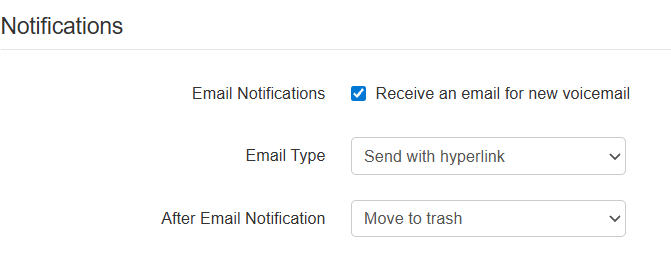
- Under Notifications, Check "Receive an email for new voicemail"
- Email
typeType and After Email Notification becomes available for selection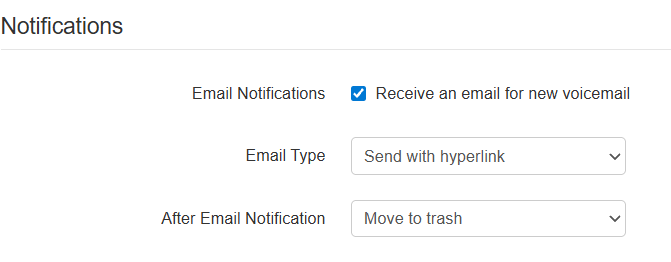
- Email type:
- Send with Hyperlink
- Sends an email with a web URL to directly go to the portal
- Send with brief Hyperlink
- Sends an Email with a web URL shortened to omit file details (time created, etc.)
- Send with Attachment (Recommended)
- Sends an Email with the voicemail as an attachment to the user's inbox
- Send with brief Attachment
- Sends an Email with the voicemail as an attachment to the user's inbox with the filename shortened to omit file details
- Send with Hyperlink
- After Email Notification
- Leave as new
- Leaves the original voicemail in the voicemail box and can be checked still on a physical phone
- Physical phone will still have the "Message Waiting Indicator" still lit
- Counts against the user voicemail box storage limit
- Move to saved
- Leaves the original voicemail in the voicemail box and can be checked still on a physical phone
- Physical phone will not have the "Message Waiting Indicator" still lit
- Counts against the user voicemail box storage limit
- Move to trash (Recommended)
- Moves original voicemail to trash and frees up space on voicemail storage limit
- Leave as new

If voicemail transcription is available (Basic Scope and above), when voicemails are delivered there will be a Speech-to-Text transcription includedincluded.