
How to Send Welcome Email for Portal Use
1. Click the Users tile

2. Use the search to find desired user then click the blue name to edit OR use the pencil to edit.

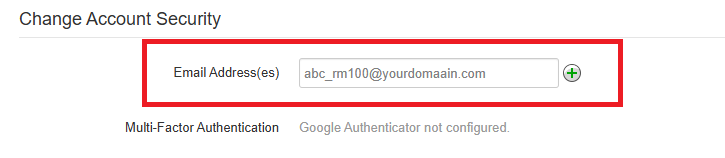
3. Scroll down to Change Account Security and enter the email address. Click Save.
4. Click on the Advanced tab and then click Send Welcome Email.
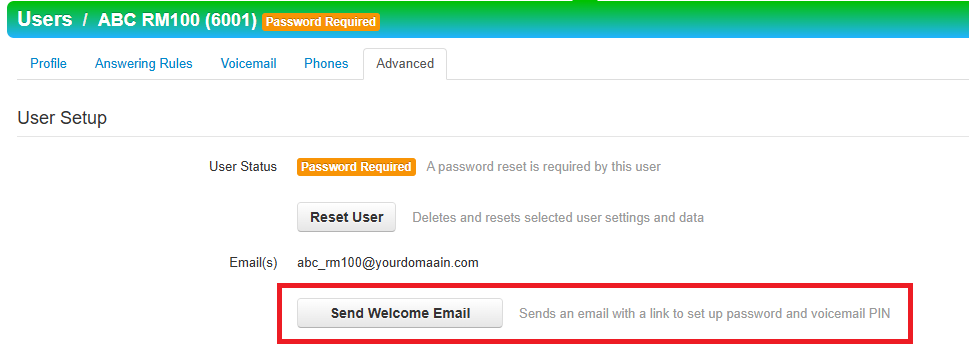
Users have ??? to set up credentials for the Portal once they receive the welcome email. See How to Make Bulk Edits to Multiple User docAccounts to Send Welcome Email to multiple usersusers.
Users MUST have an email entered BEFORE welcome letter can be sent.