
How to Configure SNAPbuilder Buttons
1. Click the inventory tile.

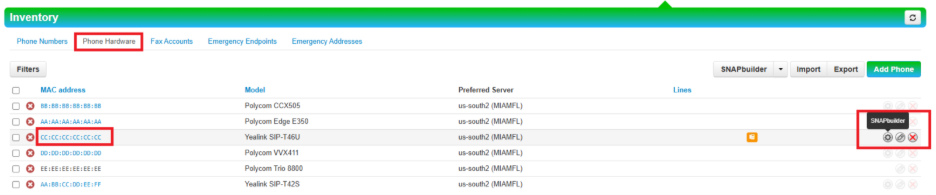
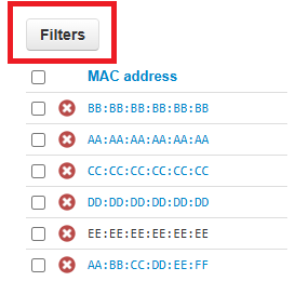
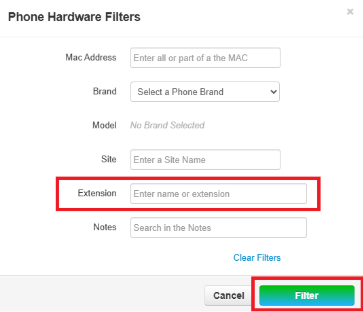
2. Click the Phone Hardware tab. Click the MAC address of the phone you want to modify or the SNAPbuilder gear icon to open the phone’s SNAPbuilder. Note: You can also use Filters (see second screen shot) to search by phone number or name of person’s phone you want to modify.
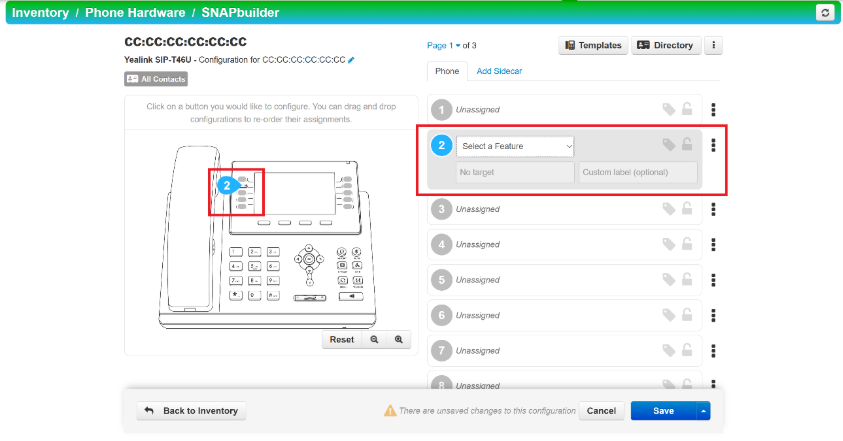
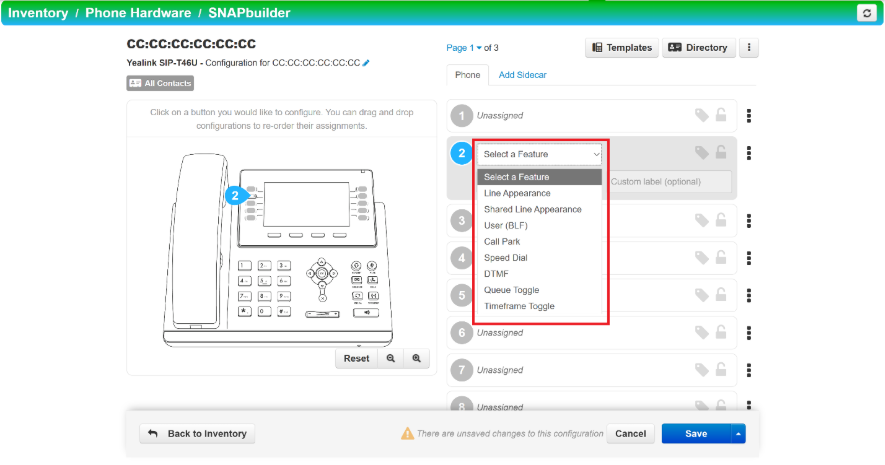
4. To Select a Feature, click on the drop-down menu to view the features you can assign to the buttons and select the desired feature.
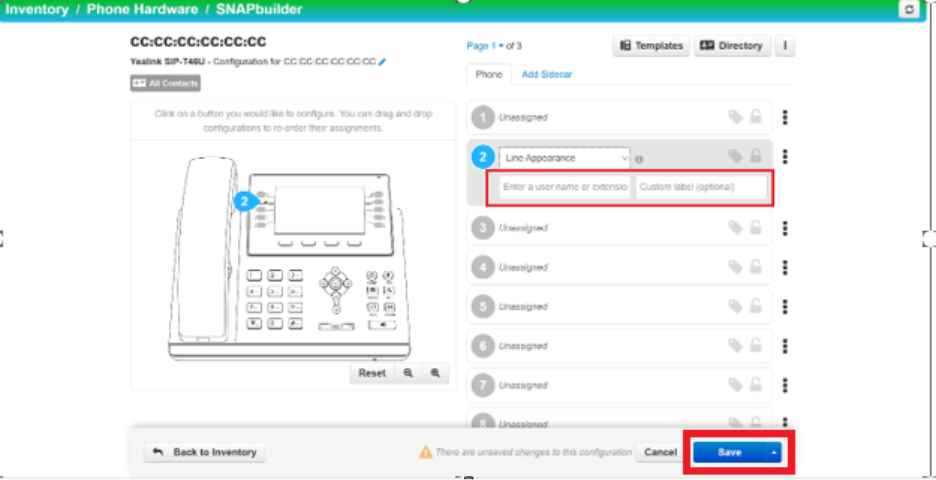
5. Once the desired features(s) have been selected, fill out the necessary fields and click Save.
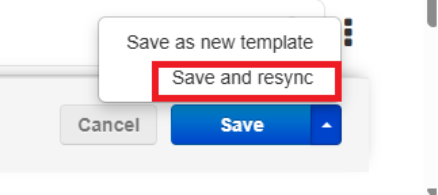
6. The phone will not immediately pull the configuration changes but will do so when it checks in with the provisioning server, which in most cases would be at night, after hours. To force the phone to reboot and pull the configuration changes immediately, click the up arrow to the right of the Save button and select Save and resync.
Feature | Description |
Line Appearance | Assign a user to the line. |
Shared Line Appearance | Shares a line appearance with another phone. Calls to the shared line user can be picked up and held from any phone that has the shared line. |
User (BLF) | Shows a user with status (BLF). While light is flashing, calls to this user can be picked up on configured phone. Call the user when pressed. |
Call Park | Parks a call to the entered Call Park. Pressing again will retrieve the call from Call Park. |
Speed Dial | Call the entered phone number. |
DTMF | Sends DMTF tones. These can be interpreted to run an application. Compatible string characters include numbers, * (star) and (hash #) |
Queue Toggle | Toggles the active queue status for the user. All queues will be toggled. |
Timeframe Toggle | Toggles the active status of the selected timeframe. |
Note: When entering a user extension in for Line Appearances feature, the phone’s user interface will not automatically display the name associated with that extension. To have it do so, enter the name in the Custom label (optional) field