
How to Build an Auto Attendant
1. Click on the Auto Attendants tile

2. Select from your list of Auto Attendants to edit by clicking on the attendant OR by using the pencil icon on the right

3. Add an Into Greeting by clicking the Manage icon

4. From the pop out window, a greeting can be generated by selecting Text-To-Speech, Upload a custom greeting, or Record by calling an extension and recording over the phone. When Text-To-Speech is selected, your message can be typed in the text box. Next, select a voice from the Voice options (you can listen to the selected voice by clicking the play button). Select a Time Frame and then click Save. Note: Auto Attendants Greetings are affected by Time Frames (see How to Build Time Frames documentation)
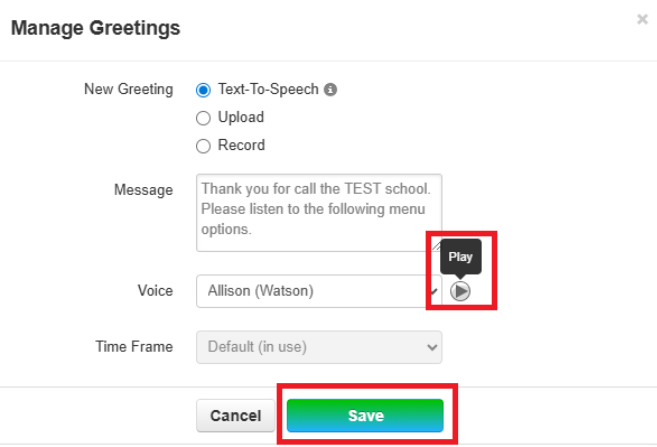

6. From the pop out window, a message can be generated by selecting Text-To-Speech, Upload or Record. When Text-To-Speech is selected, your message can be typed in the text box. Then select a voice from the Voice options (you can listen to the selected voice by clicking the play button. Select a Time Frame and then click Save
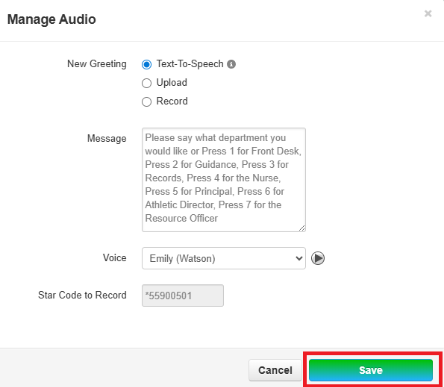
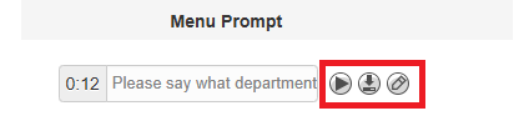
7. Once saved, you can listen to the message, download the audio file, and manage the menu
8. Next, select the Dial Pad Menu number that corresponds to the message and then click Save
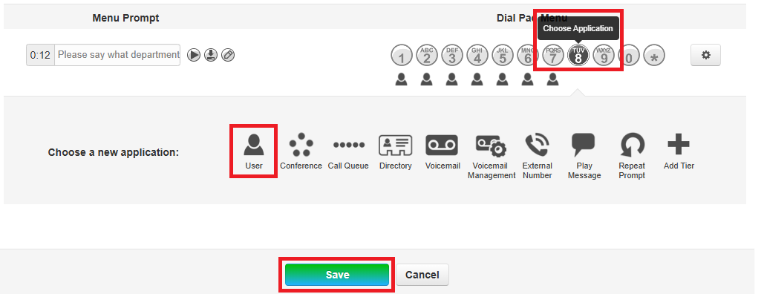
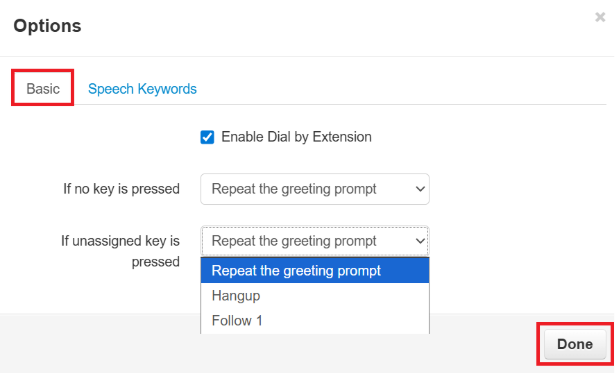
9. OPTION 1 – You can select what happens to the call if no key is pressed and if an unassigned key is pressed. Click the gear icon  . In the pop out window under the Basic tab, select your options from the drop-down menu
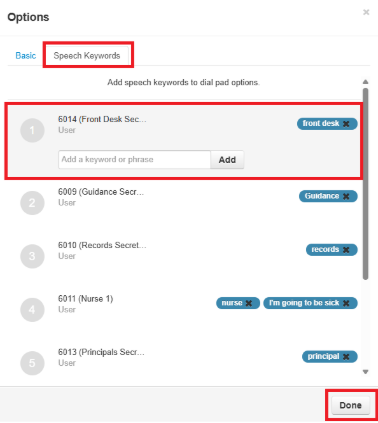
10. OPTION 2 - You can add speech key words to dial pad options. This will send the caller to the option simply by saying a key word without listening to the whole menu options. Click the gear icon  . Then in the pop out window, click the User and add a key word for phrase and then click Done
11. You can edit any Auto Attendant by hovering over the icons on the left and clicking
